Install Cytogence FCS
Download
Section titled “Download”That link always serves the current release, with the download for each platform and its checksum. It is the one to bookmark, and the one to send someone — it does not go stale when we ship.
Installers are served from releases.cytogence.com, not from GitHub.
Either Windows download works. Use the .exe unless your IT department deploys
software by MSI, in which case use the .msi. The macOS build is universal — one
download for both Intel and Apple Silicon.
Already running an earlier version? You do not need this page at all — the app checks for updates itself. See Updates.
Verify the download
Section titled “Verify the download”Worth doing once, especially if IT is going to ask.
Every release directory contains a SHA256SUMS file listing the checksum of
every file in it. The download page
links to the one for the current release.
macOS or Linux — put SHA256SUMS in the same folder as your download and let
it check everything for you:
sha256sum -c SHA256SUMSIt prints OK per file and fails loudly on any file whose contents do not match
what we published.
Windows (PowerShell) — hash your download and compare it to the matching line
in SHA256SUMS:
Get-FileHash -Algorithm SHA256 "$HOME\Downloads\Cytogence FCS_<version>_x64-setup.exe"If a checksum does not match, do not install it — re-download, and if it still does not match, tell us.
Install on Windows
Section titled “Install on Windows”- Download the Windows installer (
.exe). Your browser may hold the download back — see below. - Run the downloaded
.exe. You will probably see a Windows SmartScreen warning — see below. - Follow the installer. If an older version is installed, keep the default Uninstall before installing: your license, settings, downloaded models and unsaved work are kept (leave Delete the application data unticked).
If Cytogence FCS is already installed and your computer is online, you do not need to download anything: the app offers each new version itself, verifies it and installs it. See Updates.
Your browser may hold the download back
Section titled “Your browser may hold the download back”For a newly released version, Microsoft Edge (and sometimes Chrome) stops the download with “…setup.exe isn’t commonly downloaded. Make sure you trust it before you open it.” The file is not saved until you keep it:
- In the downloads panel, point at the held file and open its … menu, then choose Keep.
- Edge asks you to confirm. Its prominent button is Delete — the option you want, Keep anyway, is under the ⌄ arrow beside it.
The confirmation names the publisher — KeyQ, Inc., with its address in Shelburne, Vermont. That is the signature you are checking; if it is missing, do not keep the file. Like SmartScreen below, this is about how often a file has been downloaded, not whether it is signed, and it goes away as a release is downloaded more widely.
The SmartScreen warning
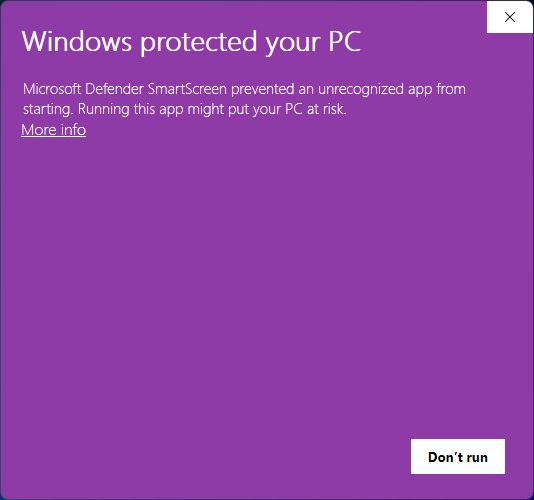
Section titled “The SmartScreen warning”Windows shows “Windows protected your PC” or “Publisher unknown” for installers it has not seen often enough yet, even when they are correctly signed. Cytogence FCS is signed; SmartScreen reputation accrues with install volume, and a new product has not accrued it yet.
To proceed: click More info, then Run anyway.
The first screen offers no way forward — the only button is Don’t run. The link that reveals the other one is the small More info under the message:
Clicking More info expands the panel and a Run anyway button appears:
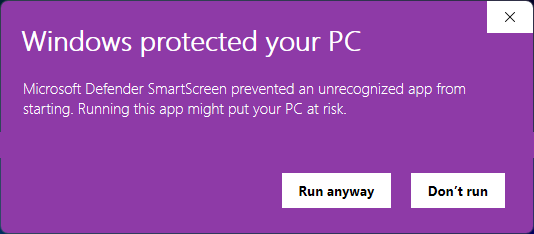
The expanded panel also lists the app name and the signing certificate’s full subject, which is why this step is worth taking rather than working around: it is where you can confirm the installer really is signed by KeyQ, Inc.
If your organisation blocks unsigned-looking installers by policy, the MSI is usually the easier route for IT to approve, and we can supply the signing details on request.
Install on macOS
Section titled “Install on macOS”- Open the
.dmg. - Drag Cytogence FCS to your Applications folder.
- Launch it from Applications.
The macOS build is signed and notarised, so Gatekeeper should not object. If it does — “cannot be opened because the developer cannot be verified” — that usually means the download was damaged; verify the checksum above before working around it.
First launch
Section titled “First launch”On the first launch that finds no license, the app explains what works without one and offers a trial. You can open and explore data immediately, with no license and no account. See Licensing.
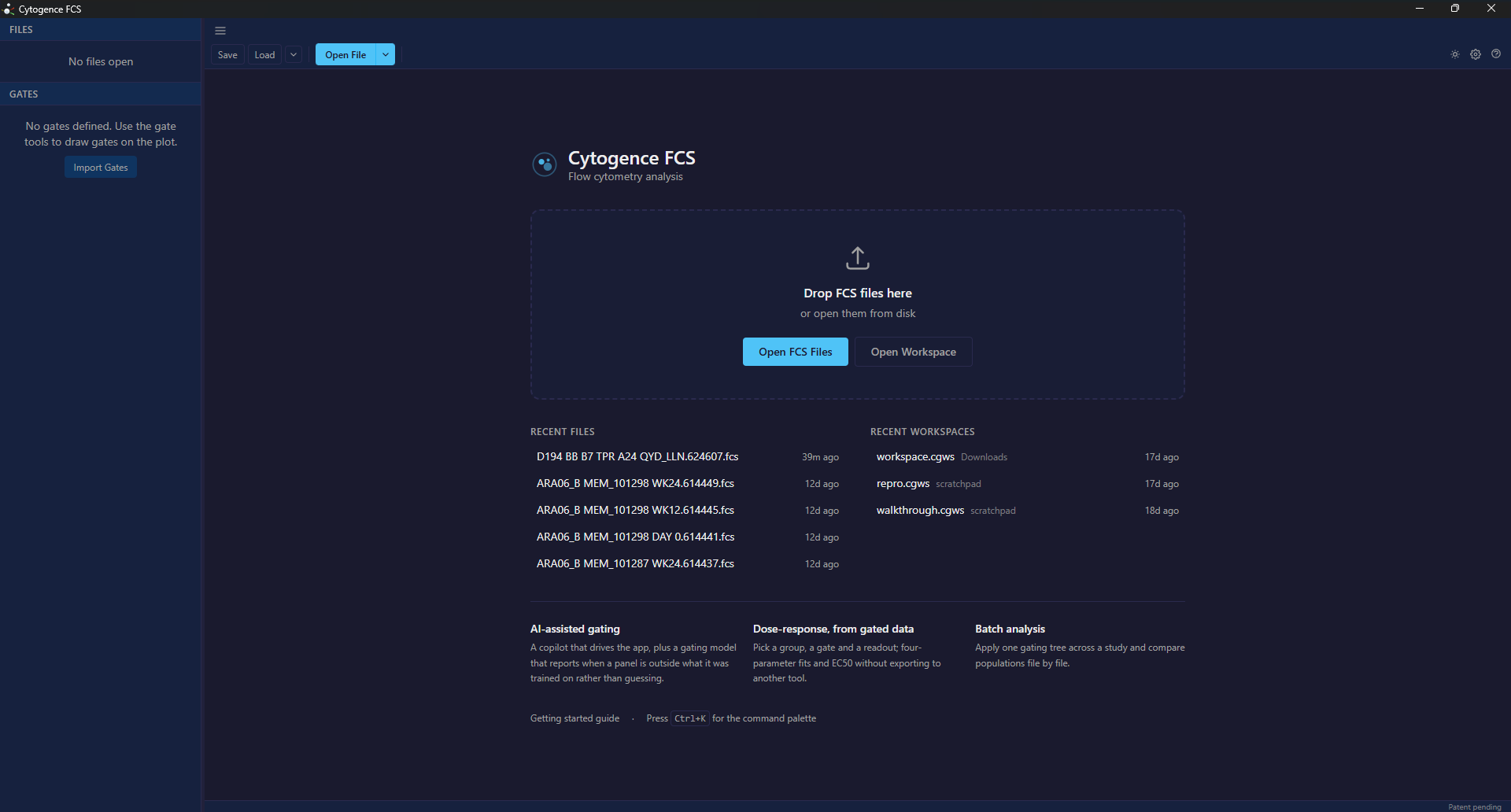
The start screen. Drop a file on it, or pick one from Recent Files.
Does it need internet access?
Section titled “Does it need internet access?”Analysis does not. File reading, gating, statistics, compensation, export and AI-1 all run locally.
Internet access is used for:
- checking for updates,
- the AI copilot, if you configure a cloud provider (a local model needs no network),
- Help → Report an Issue.
If the analysis machine is air-gapped, the product still works. Tell us and we will send update links by email rather than relying on the in-app updater.